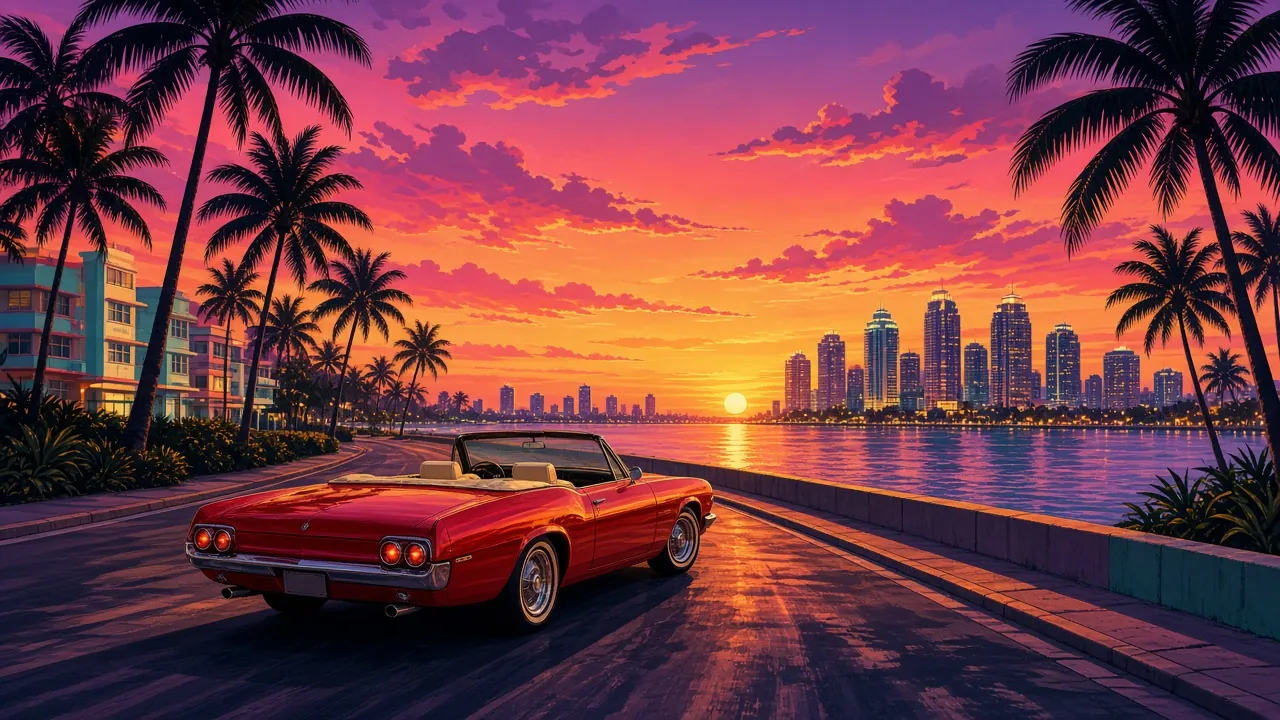
Free AI Prompt
Turn yourself into a GTA video
You’ve seen the videos — somebody wakes up, runs out the house, jumps in a drop-top, runs a red light and swerves off, all in full Grand Theft Auto style, and it actually looks like them. That last part is the whole trick. This page gives you the exact prompt I use, plus the face-lock instructions that stop the AI from changing your face.
Want side hustle ideas that fit you? Take the free 2-minute quiz — no email needed.
01 What you need
- One clear photo of yourself. Front-facing or slight three-quarter view, face well lit, no sunglasses covering your eyes if you can help it, nobody else in the frame. The AI builds everything off this photo — a blurry photo gets you a blurry character.
- An AI image/video tool that lets you upload a reference photo and type a prompt. That’s the only requirement — the prompt below does the rest.
- Two passes, not one. First you generate a still image to lock your face. Then you animate that still. Skipping the still is the #1 reason faces drift — more on that in the face lock section.
02 Step by step
-
Take (or pick) your photo
Use a sharp, front-facing photo with your whole face visible — the same kind of photo you’d use for a profile picture. Keep your natural hairstyle and beard exactly as they are. Don’t use a filtered or already-stylized picture; the AI needs the real you as the starting point.
-
Upload it as the reference image
In your AI tool, attach the photo first, before you paste anything. If the tool has a “character reference,” “face reference,” or “image to video” option, use that slot — that’s what tells the tool whose face to hold onto.
-
Generate the still first — and approve it
Run the prompt once as a still image. Look at it hard: is that your face? Your build? If the face is off, regenerate the still — do not animate a still that already looks wrong, because animation only makes the drift worse. Only move on when the still looks like you.
-
Animate the approved still
Now use that still as the starting frame and run the same prompt as a video. The key line is already in there: animate the car and the movement, do not animate the face. He looks straight ahead, focused on the road, the whole time.
-
Check the freeze frame
The video ends frozen on the swerve. If the face changed at any point — especially if the character turned and looked at the camera — that’s the moment it broke. Re-run it with the face-lock lines kept in. Looking at the camera is what breaks the lock.
03 The prompt — copy it exactly
Paste this word for word. Don’t shorten the face-lock lines at the top — they’re doing the heavy lifting. After it works once, change the scene, the car, and the city to make it yours (ideas in section 05).
Create a GTA-style video starring me. Use my uploaded photo as the reference and lock my face exactly — do not change any facial features, hairstyle, beard, or skin tone. Keep my body stocky and proportionate exactly as in the photo — no slimmed-down body, no stretched body, no exaggerated muscles.

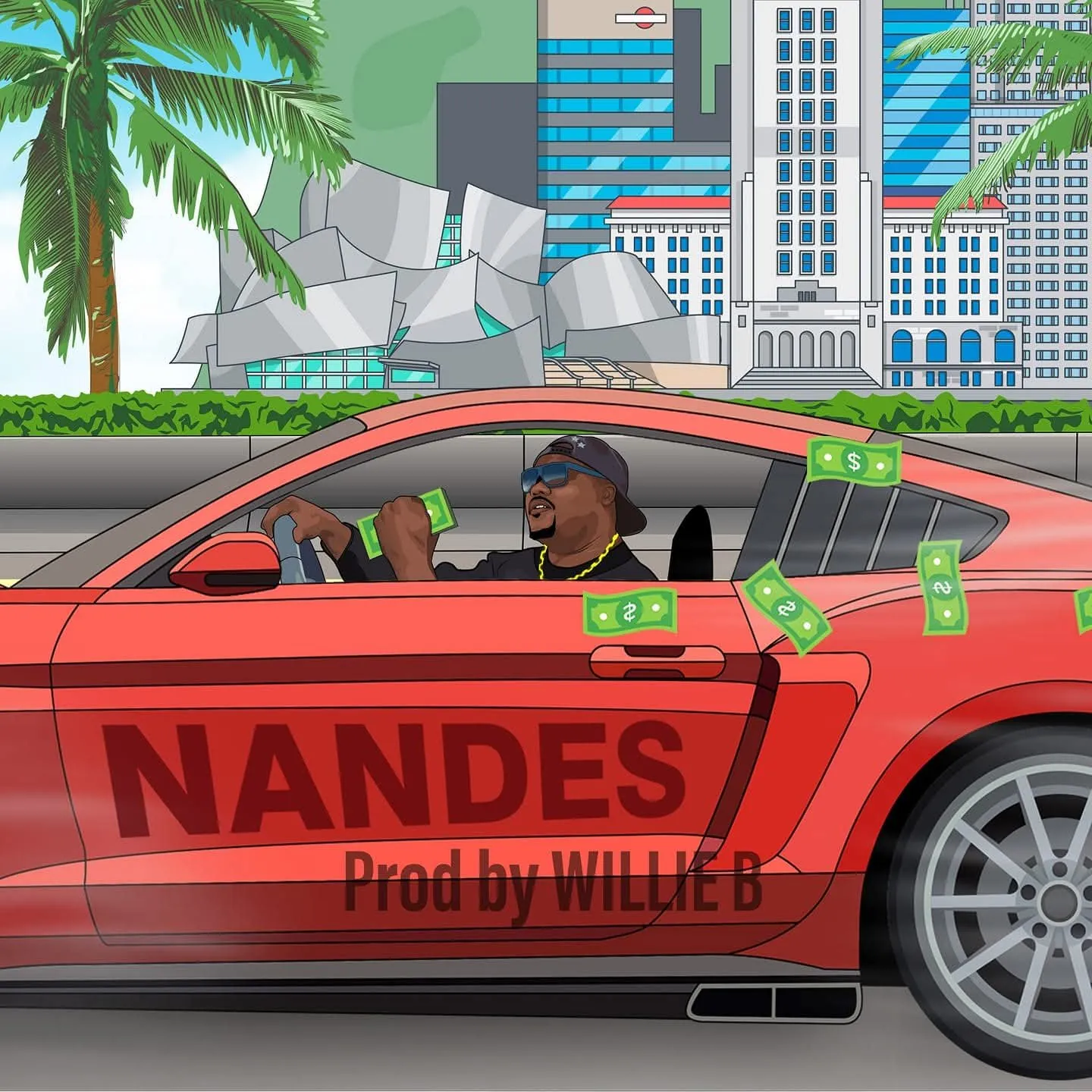
Style: Grand Theft Auto / Los Santos, flat cartoon, bold outlines, GTA signature color palette — sunset orange and purple sky, teal buildings, saturated reds and greens, Los Angeles skyline and palm trees. No text on the car.

Scene: I wake up in bed in the morning, jump up, run out the front door of my house, jump into a red drop-top convertible parked outside, speed off, run a red light, then swerve left. Freeze on the swerve.

Face: Keep my face exactly as in the image, unchanged, looking straight ahead and focused. Do not animate the face. Animate only the car, the wheels, and the background movement.

End text on screen: "Want to create your own GTA video? Get the prompt at sidemoneyguru.com"
Tip: if your tool has a separate “negative prompt” box, put this in it: different face, changed facial features, slim body, stretched body, looking at camera, text on car, watermark.
Just want the driving scene?
If you don’t need the wake-up opening, this shorter version goes straight to the car — it’s also the best one to use for your first test still:
GTA-style driving scene starring me, drawn from my uploaded photo. Face lock: keep my face exactly as in the photo — same facial features, hairstyle, beard, and skin tone, unchanged. Keep my body stocky and proportionate as in the photo.

I'm driving a red drop-top convertible through a Los Santos–style city at sunset — orange and purple sky, teal buildings, palm trees, bold outlines, flat cartoon shading, saturated GTA color palette. No text on the car.

I look straight ahead, focused on the road — never at the camera. Do not change or animate my face. Animate only the car, the spinning wheels, and the city moving past.
04 Face lock — why your face keeps changing
This is the part everybody skips, and it’s why most GTA videos come out looking like a cousin instead of the person. AI video tools re-draw your face a little on every frame. One small change leads to another, and ten frames in, it’s a different man. Face lock means giving the tool strict instructions so it holds your face still and only moves everything around it.
Lock the still first. Approve a still image that looks like you, then animate from that exact still.
Look straight ahead. Eyes on the road, focused. A forward gaze keeps the face in the position the lock can hold.
Never look at the camera. The second the character turns to face the camera, the tool re-draws the face — and it comes back as somebody else.
Don’t animate the face. No talking, no big expressions, no head turns. Animate the car, the wheels, and the background — the face stays frozen as drawn.
If the face still drifts
- Your photo is the problem: switch to a sharper, front-facing photo with even lighting and nothing covering your face.
- The scene is too busy: shorten the video. A clean 6–8 second drive holds a face far better than a long multi-scene sequence.
- One scene at a time: generate the wake-up, the run out, and the drive as separate clips from the same locked still, then stitch them together in any free video editor.
- Say it twice: the prompt already states the lock at the top and again at the end. Keep both — repetition genuinely helps the tool obey it.
05 Make it yours
Once the base prompt works, swap one line at a time and re-run it. Keep the face-lock lines untouched every time — only change the scene details:
| Swap this | Try this instead |
|---|---|
| The car | A black muscle car, a gold lowrider, a blue sports bike — or match the car you actually drive. |
| The city | Vice City neon and beaches, your own hometown skyline, or a desert highway at sunset. |
| The opening | Walking out of a barbershop, leaving work, or stepping out of a recording studio instead of waking up. |
| The ending | Freeze on the swerve, freeze pulling up to a mansion, or freeze with the city skyline behind you. |
| The end text | Put your own handle or website on the freeze frame so the video promotes you, not just the prompt. |
Post it with a caption that sends people here for the prompt — “Comment GTA and I’ll send you the link” works well — and every view becomes a visit to this page.
Want more ways to make money with AI?
This prompt is one trick. Take the free Side Money Guru quiz and get side hustle ideas matched to you — with a 7-day plan for each one.
Take the free quiz at sidemoneyguru.comFree. No email needed to get your ideas.